

 10 hours ago
2
10 hours ago
2
PROTECT YOURSELF with Orgo-Life® QUANTUM TECHNOLOGY
Orgo-Life the new way to the future Advertising by AdpathwayA child may enjoy tracing letters on a tablet but struggle to upload a worksheet from it. Another may own a powerful game console and still need a laptop to type homework. That is why a tablet vs laptop vs console for kids comparison cannot be settled by price, age, or screen size alone.
You can open Table of Contents show
For most school-age children who need one primary device, a laptop or Chromebook is the safest all-purpose choice. A tablet often suits younger learners, readers, and children who benefit from touch or stylus input. A console can support selected learning experiences, but it is usually a recreational device rather than a school computer.
If I had to reduce the decision to one rule, it would be this: buy for the child’s most demanding regular task, not the easiest one.
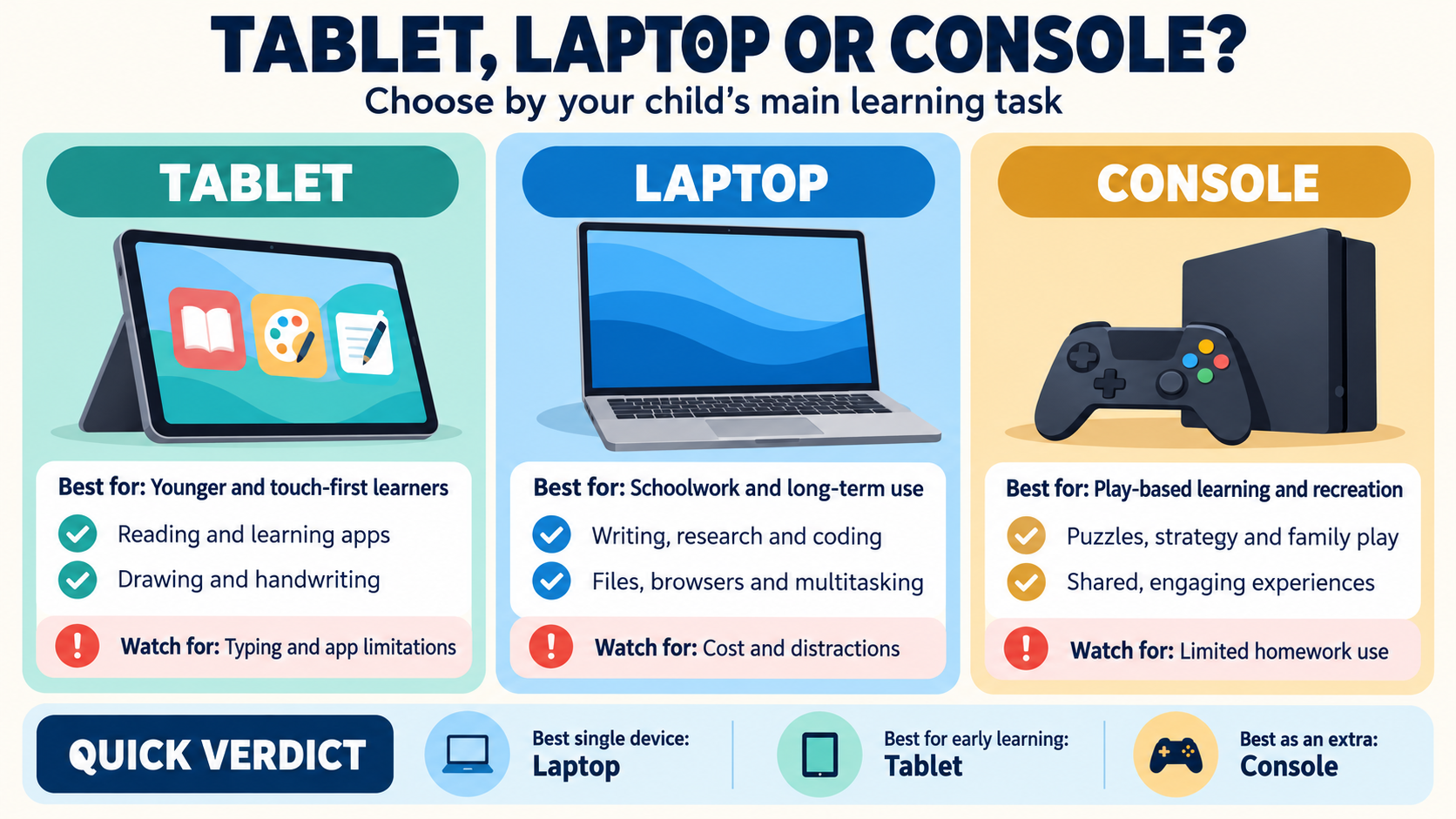
Tablet vs Laptop vs Console for Kids: The Quick Decision
| Device | Best For | Main Limitation |
| Tablet | Reading, drawing, handwriting and early-learning apps | Less efficient for long assignments |
| Laptop or Chromebook | Writing, research, presentations, coding and online classes | Less natural for handheld reading and drawing |
| Console | Games, simulations and shared family play | Cannot manage ordinary schoolwork well |
A child’s age provides a starting point, but school requirements, motor skills, accessibility needs and the type of assignments should make the final decision.
Start With What the Child Must Do
Before comparing brands, ask the school which operating systems and applications it supports. A learning platform may open on a tablet while certain tests, browser extensions, or assignment tools still require a computer.
Look at an ordinary week rather than an imagined future. Does the child type paragraphs, annotate worksheets, attend video classes, or switch between research and a document? Will the device need to work offline? Does the school require a webcam, physical keyboard, USB port, or specific software?
Accessibility also deserves attention before purchase. Text-to-speech, dictation, captions, display adjustments, and alternative input tools are available across major platforms, but their usefulness depends on the child and the required applications. Whenever possible, let the child try the device first.
When a Tablet Is the Right Choice
Tablets are approachable because children can tap, drag, draw, and write directly on the screen. They are well suited to digital books, phonics, basic mathematics, handwriting, educational videos, photography, and creative projects.
Touch-led apps such as Alphabet Magic Trace & Phonics, 123 Magic Number Fun: Math Kid, and Spell & Learn illustrate this advantage. They can provide focused practice with letters, numbers, and spelling in a format that feels natural to younger children. Their value is strongest when an adult discusses the activity and connects it with reading, writing, or play away from the screen.
The limitation appears when learning becomes more complex. An on-screen keyboard is uncomfortable for lengthy writing, while mobile versions of school applications may offer fewer features. Adding a keyboard, stylus, stand and protective case can also push the total cost close to that of a capable laptop.
A tablet is therefore strongest as a touch-first learning device. It should not automatically be treated as a complete replacement for books, handwriting, play or teaching.
Why a Laptop Is Usually the Best Primary Device
A laptop gives a child a physical keyboard, trackpad, larger workspace, and better file management. Those advantages become important when assignments involve sustained writing, research, presentations, spreadsheets, coding or several resources open together.
A Chromebook can be a practical choice when a school mainly uses Google Classroom and browser-based tools. A Windows laptop offers broader support for specialist applications and peripherals. A Mac may fit an existing Apple household or creative workflow, although it is rarely the lowest-cost option.
For a child approaching independent schoolwork, I would normally choose a laptop before spending heavily on a tablet, premium keyboard and separate accessories. The tablet setup may look more flexible, but the laptop often creates less friction when real assignments arrive.
A convertible laptop can offer touch and keyboard input in one device. However, parents should still verify stylus support, school-software compatibility, and how comfortable the machine feels in tablet mode.
Can a Console Be a Learning Device?
Strategy games, puzzles, simulations, and collaborative games can encourage planning, experimentation, spatial thinking, and teamwork. Narrative games may expose children to new vocabulary, while creative games can support design and problem-solving.
However, success inside a game does not automatically transfer to mathematics, writing, or another academic task. The learning becomes more meaningful when an adult asks what strategy worked, why a decision failed, or how the activity relates to the real world.
Parents should also distinguish between an entertainment game and a purpose-built educational edition. A familiar title played on a console may not include the lessons, classroom controls, or assessment features available in its education-focused version.
I would treat a console as a supplementary family device. It can provide valuable play and selected learning experiences, but it is not a sensible substitute for a tablet or laptop needed for school.
The Best Choice by Age
Ages 4–5: A shared, adult-managed tablet is usually sufficient for stories, drawing, and short educational activities. Personal, unrestricted access is unnecessary.
Ages 5–8: A tablet or touch-enabled two-in-one often works well for reading, handwriting, and early-learning apps. Add a physical keyboard if schoolwork already involves regular typing.
Ages 9–12: A laptop or Chromebook is generally the more dependable primary device as assignments become longer and children begin managing research, files, and presentations independently.
A console can be introduced at different ages according to the child’s maturity, game ratings, and family rules, but it should remain separate from the main school-device decision.
What Specifications and Costs Matter?
For a tablet, look for a display of around 10 or 11 inches, adequate storage, current software support, and a strong protective case. Check the exact cost and compatibility of any keyboard or stylus before buying.
For a laptop, 8GB of memory is a sensible target for a new long-term purchase. A web-focused Chromebook can work comfortably with around 128GB of storage, while 256GB is a more practical starting point for many Windows laptops. Keyboard quality, battery life, webcam performance, weight, and durability often matter more than premium graphics.
These are practical targets, not universal requirements. The school’s software and the child’s workload should take priority.
The complete cost is also more useful than the advertised device price:
Device + case + keyboard or stylus + software or games + subscriptions + storage + repairs
For consoles, include extra controllers, online memberships, headsets, and the television or monitor. In my view, this is where many apparently inexpensive purchases become misleading.
Parental Controls Are Part of the Purchase
Whichever device you choose, create a child account rather than handing over an unrestricted adult profile. Parents should manage downloads, purchases, websites, communication, and daily schedules.
Turn off unnecessary notifications and autoplay during learning. Review camera, microphone, location, and advertising permissions, particularly in free apps. On consoles, check voice chat, text communication, and in-game spending separately; an age rating alone does not control these features.
Controls are useful guardrails, but they are not perfect. Regular conversations about privacy, advertising, online behaviour and uncomfortable content remain essential.
Healthy Use Matters More Than a Single Time Limit
Not all screen time has the same value. Thirty minutes spent creating a story with a parent is different from thirty minutes of passive, endless video. It is more useful to examine the content, context, and activities being displaced than to rely on one universal number.
Keep room for sleep, books, physical movement, conversation, and outdoor play. Children should take regular eye and movement breaks, use a supported sitting position, and avoid balancing laptops or tablets on a bed for long sessions. A tablet stand can also reduce the need to bend over a screen lying flat on a table.
Final Thoughts on Tablet vs Laptop vs Console for Kids
The tablet vs laptop vs console for kids decision becomes clearer once the child’s real work comes first. Choose a tablet for touch-led early learning, reading, and creativity. Choose a laptop when one device must handle writing, research, online classes, and future schoolwork. Choose a console for recreation and selected game-based experiences after the primary learning needs are covered.
The best device is not the one with the longest feature list. It is the one that helps the child learn with the least unnecessary friction and still leaves room for life beyond the screen.
Frequently Asked Questions on Tablet vs Laptop vs Console for Kids
Is a Chromebook enough for a primary school student?
It usually is when the school relies on browser-based services and Google Classroom. Confirm whether any required applications, examinations, or accessories need Windows or macOS before buying.
Is a two-in-one laptop better than purchasing a tablet?
It can be a good compromise for children who need both touch input and a physical keyboard. Some models are heavy or awkward in tablet mode, so comfort and pen support should be checked carefully.
Sharing can work for younger children with light usage. It becomes difficult when siblings have simultaneous classes, separate accounts or conflicting assignment deadlines.
What if the home internet connection is unreliable?
Check whether lessons, documents, and educational apps can be downloaded in advance. A device described as capable of offline work may still require initial setup or periodic internet access.
How can parents reduce distractions during homework?
Use a separate child account, disable nonessential notifications, remove shortcuts to entertainment apps, and establish a consistent study location. Clear routines are usually more effective than monitoring alone.

























 English (US) ·
  French (CA) ·
  French (FR) ·